How to Claim Your Business in ChatGPT: A Step-by-Step Guide
OpenAI launched Businesses in ChatGPT. Here is how to claim and verify your business in Business Hub, what to manage afterward, and why it matters.
OpenAI has launched Businesses in ChatGPT, currently in beta. If you own a business or are authorized to represent it, you can claim it, verify it, and manage the information ChatGPT uses. Claim approval is only the first step: identity verification with Persona unlocks publishing changes, product feeds, insights, and the business agent.
OpenAI has launched Businesses in ChatGPT, currently in beta. If you own a business or are authorized to represent one, you can now claim it in Business Hub and manage the information ChatGPT uses. Here is the process from start to finish.
OpenAI’s official guide: Setting up your business on ChatGPT.
What to have ready
- Authority: You must own the business or be authorized to represent it.
- A ChatGPT account your company controls: We recommend using a company email, not a personal one, so access stays with the business.
- A way to prove the connection: This is a code sent to your business phone or email, a record added to your website’s DNS settings, or a Shopify login. ChatGPT shows only the methods that apply to your listing.
- Identity documents: Persona may ask for a government-issued ID, business registration information, and proof you can represent the business.
Step 1: Open Business
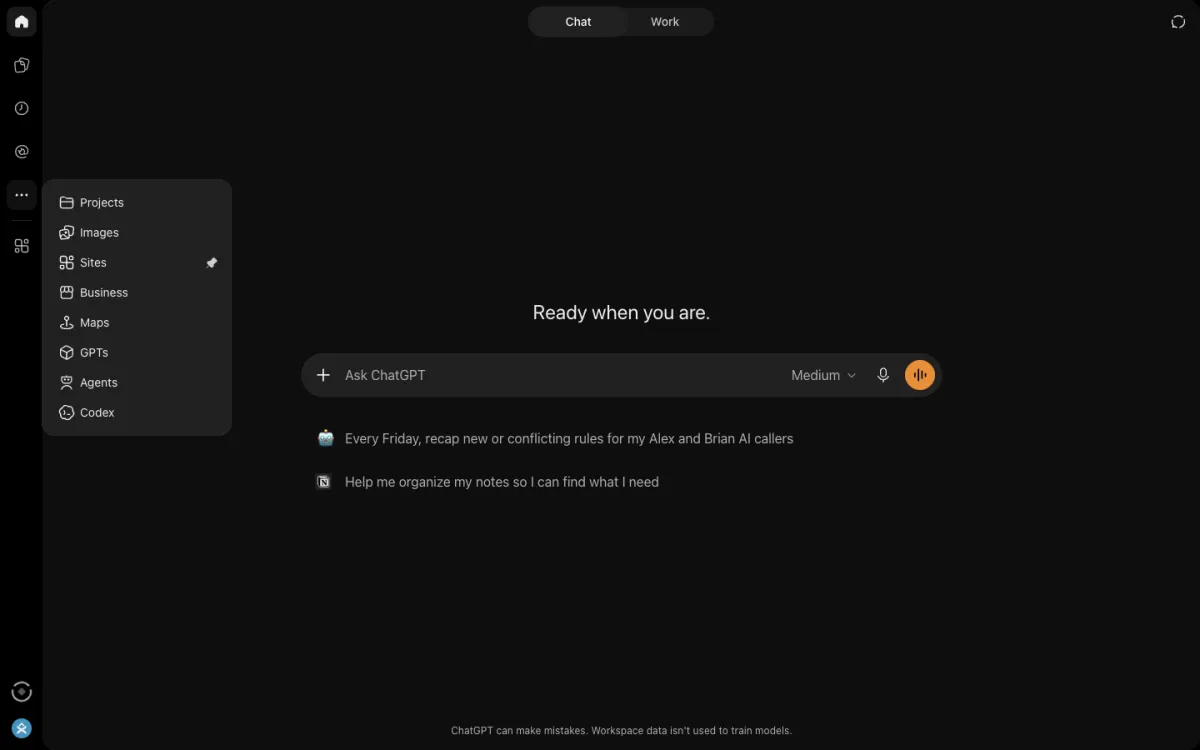
Sign in to ChatGPT on the web and open Business in the sidebar. If you don’t see it, select the “⋯” (More) button in the left sidebar, then select Business.
Step 2: Find your listing
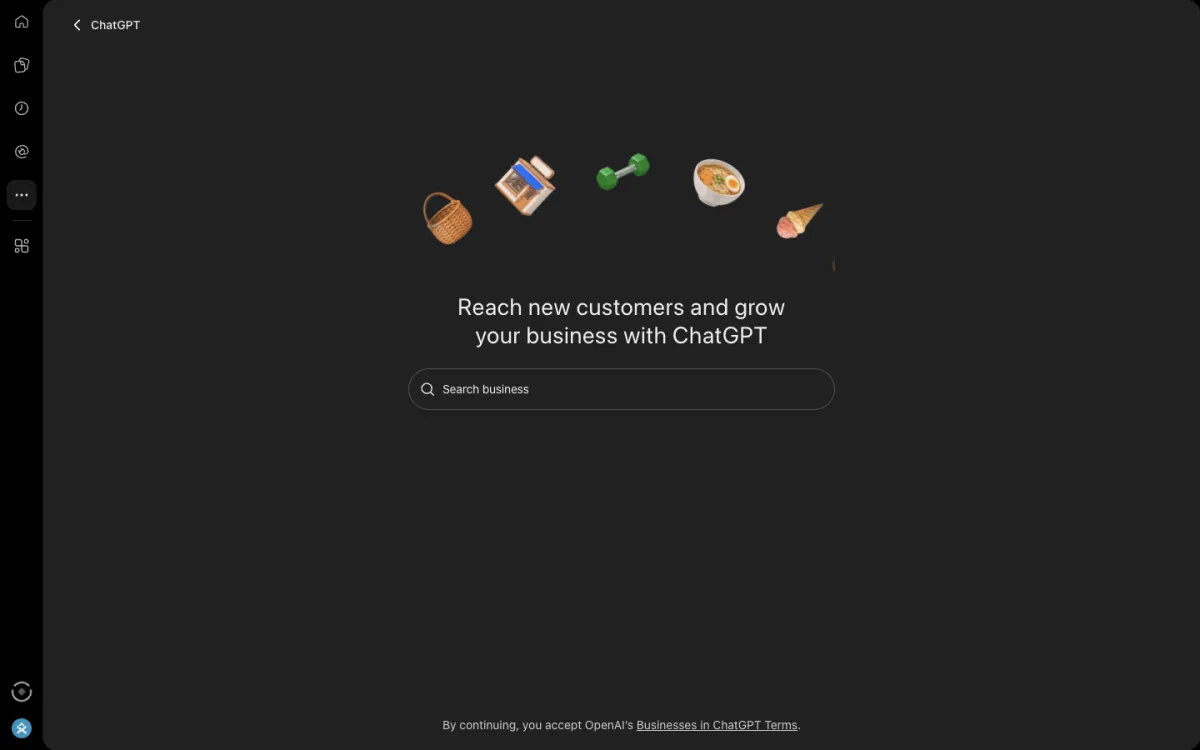
If you have never claimed a business, Business opens on a Search business screen. If you already have a business workspace, select “⋯” (More business actions), then Add business, and the same field opens. Search for your business by name, select the listing that matches, and confirm the ChatGPT account you will use to manage it.
A few cases to know about:
- You received a claim invitation: Open the link in that email and sign in with the address that received it.
- You see Contact support: The listing is locked. Select Contact support to request help with access.
- You can’t find your business: Eligible online businesses may see an option to add it. Local stores and restaurants can currently claim only an existing US listing.
- It is already claimed: Open its profile, select the “•••” menu, then Dispute ownership, and verify with Persona that you are authorized to represent the business.
Step 3: Choose a verification method
- Business phone: Choose a text message (SMS) or an automated call, select Get code, and enter the code.
- Business email: Select Get code and enter the code sent to your business email.
- Website domain: Add the TXT record ChatGPT shows you to your DNS settings. Copy the type, name or host, and value exactly. If someone else manages your domain, ask them to add it. DNS changes can take time to appear. Then return and select Verify domain.
- Shopify store: Select Connect Shopify, review the permissions, select Log in to Shopify, and sign in to the store you are claiming.
Step 4: Wait for your claim to be approved
OpenAI reviews the claim and emails you its decision or a request for more information. Review time varies. While it is under review, you can select Cancel claim. Once approved, you can open your business in Business.
Step 5: Complete identity verification
Claim approval alone doesn’t unlock everything. OpenAI uses a verification provider called Persona. Until Persona approves you, you can’t:
- publish changes to your business information
- connect a product feed
- view insights
- create a business agent, if your business is eligible
Select Verify with Persona, then Continue to Persona, and follow the prompts. If you used another method first, open your business overview and select Complete verification with Persona. A few things to keep in mind:
- Make sure the business name, address, and any registration or tax number you provide match your official business records.
- Submitting information to Persona is not approval. OpenAI emails you its decision or a request for more information.
- The verified badge, a blue check, appears only after Persona approval.
Step 6: Update your business information
Open Overview and select Edit business info. The details are on the tabs About, Contact, Photos, Location, and Hours. OpenAI’s help article lists the things you can update: your website, business description, product or service category, logo, delivery policy, and return policy, plus an optional cover photo. Make sure these match your website and what your team tells customers by phone.
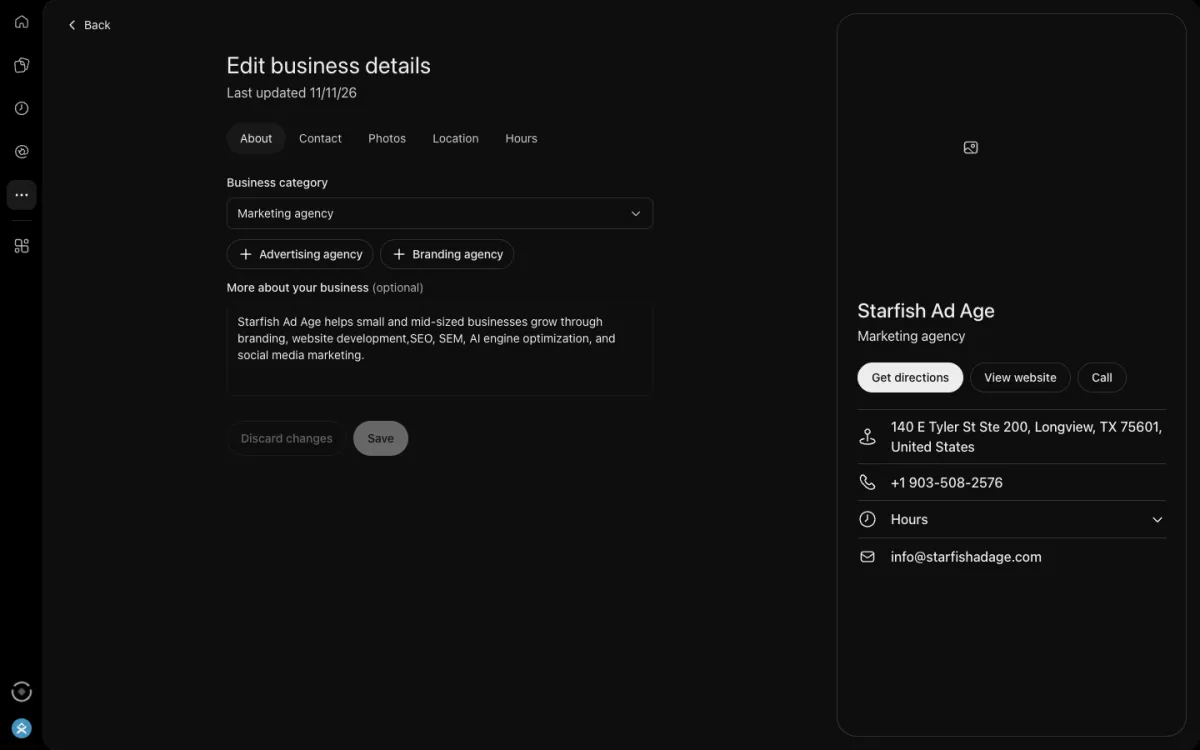
OpenAI reviews and publishes changes. Updates can take time to appear, and ChatGPT may also use other sources when it answers questions about your business.
Step 7: Add product information and check your insights
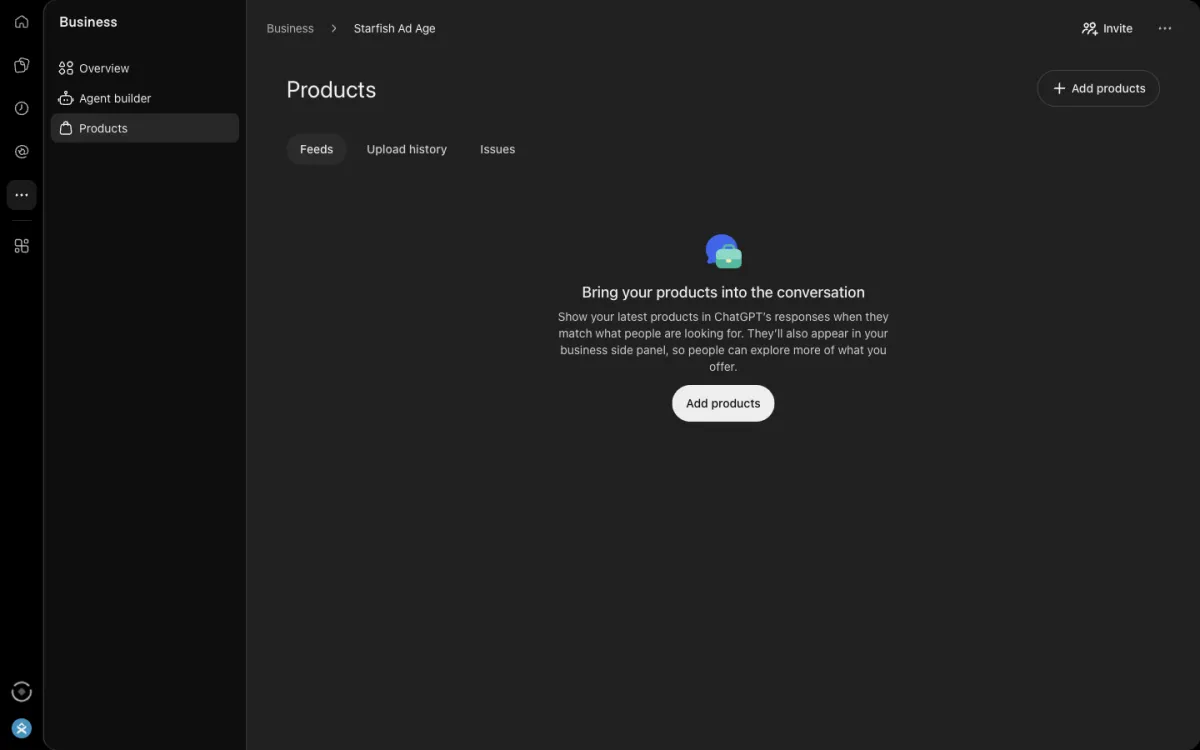
If you sell products, the Products page is where you connect a product feed to share prices and availability. You can upload a CSV that follows OpenAI’s product feed specification, link to a hosted feed file, or connect a Shopify feed. The page has tabs for Feeds, Upload history, and Issues. Connecting a feed doesn’t guarantee that ChatGPT recommends your products.
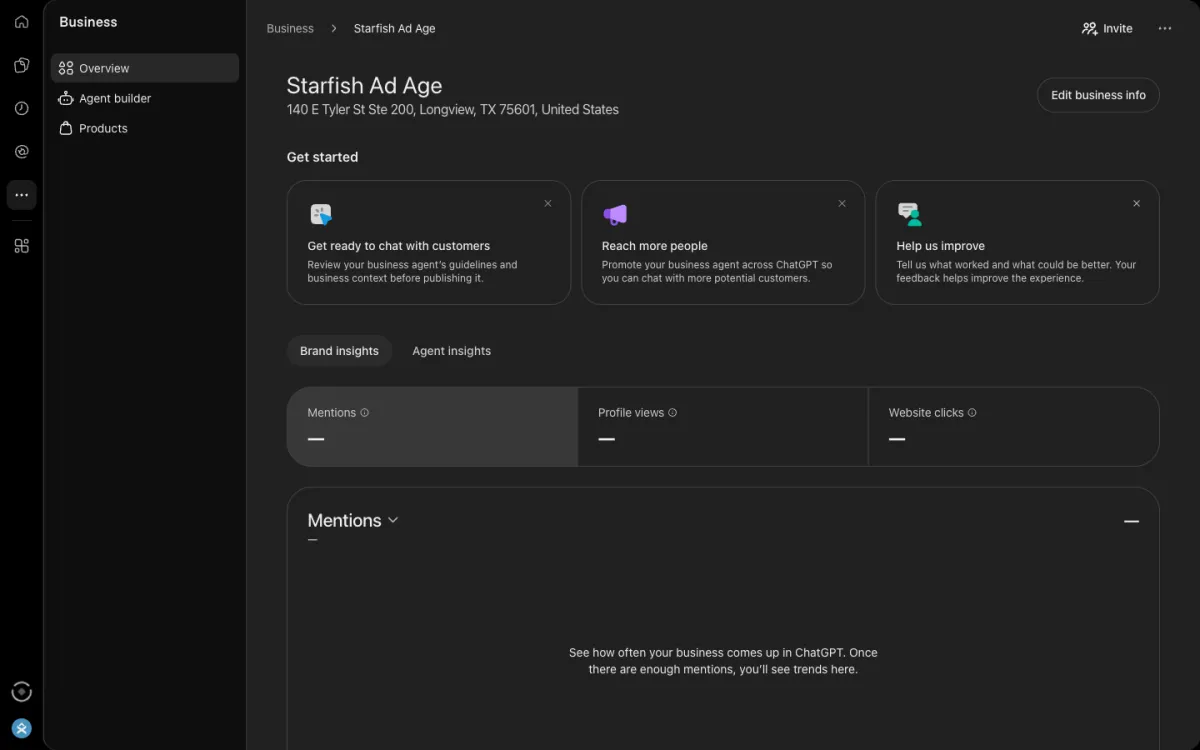
Insights are on Overview under Brand insights and Agent insights. They show aggregate activity over the past 28 days:
- Mentions: For an online business, a mention counts when ChatGPT references your website. The brand name alone doesn’t count. For a local business, it counts when ChatGPT shows a result for that location.
- Website clicks: How often people click through to your website.
- Discovery topics: Common themes in ChatGPT answers that mentioned or cited your business.
Businesses never receive individual prompts or conversations. A blank metric doesn’t necessarily mean zero activity, because the data may still be collecting or may not have reached the reporting threshold.
Step 8: Consider a business agent
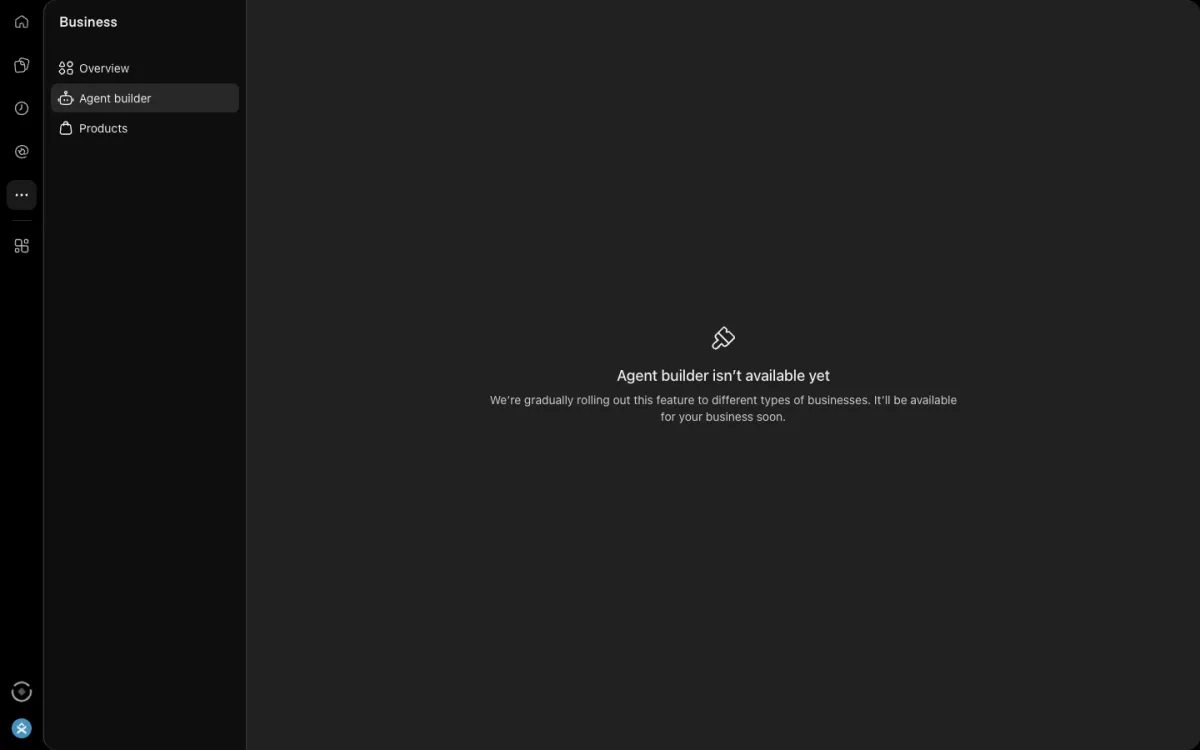
Eligible ecommerce and online service businesses in the US with a website can create a business agent, as long as they meet the Business Agents Policy. It answers customer questions using information you provide. You set it up in Agent builder. Review the information it will use, preview it with a question customers often ask, then select Publish. Customers can chat only with a published agent. The agent can’t complete purchases or bookings. It explains your products and policies and links to your website.
OpenAI is rolling Agent builder out gradually, so some businesses see “Agent builder isn’t available yet.”
Good to know
- No guarantees: Claiming doesn’t guarantee more visibility or give you control over ChatGPT’s independent recommendations. Advertising doesn’t influence its independent answers.
- Separate steps: You don’t need an Ads account, or to publish an agent, to claim your business.
- Team and agency access: The admin who claimed the business can add teammates and grant an agency access. Each person uses their own ChatGPT account. Don’t forward a personal claim invitation.
- One brand at a time: Each distinct brand is managed separately, and claiming a main brand doesn’t claim its locations.
What OpenAI launched, and why
OpenAI describes Businesses in ChatGPT as a way for businesses to claim their listing, manage their information, and get insights on how people engage with them. For you, the practical result is that ChatGPT can work from details you control, so people exploring products and services see the right information.
Why this matters for your business
- You control the details: Hours, contact details and descriptions can be kept accurate at the source instead of left to chance.
- You get a view into AI search: Mentions and website clicks give you a first look at how ChatGPT sends people to you.
- Your information has to agree everywhere: Your profile, website and the answers your team gives by phone should say the same thing.
- The feature is new: It is in beta, so now is a good time to get verified and tidy up your information.
Source: OpenAI Help Center, Setting up your business on ChatGPT.
Need help getting ready?
If you’d rather not handle this alone, Starfish Ad Age can help you review your information and get set up. Once you have claimed your business, you can grant us agency access so we can manage the profile for you. Contact us and we will walk through it with you, or read how our generative engine optimization work helps your business show up accurately in AI search.
Questions
worth answering.
Who can claim a business in ChatGPT? +
You can claim a business if you own it or are authorized to represent it. You need to verify your connection to the business and be approved. You don't need an Ads account or a ChatGPT Enterprise agreement to claim an eligible business.
How do you verify a business in ChatGPT? +
Use one of the methods ChatGPT offers for your business: a code sent to your business phone by text message or automated call, a code sent to your business email, a TXT record added to your website's DNS settings, or a Shopify login. After your claim is approved, you complete identity verification with Persona to publish changes, connect a product feed, view insights, or create a business agent.
Will claiming my business make ChatGPT recommend it more often? +
No guarantee. Claiming lets you manage the information you provide about your business. It doesn't guarantee increased visibility or give you direct control over ChatGPT's independent recommendations, and advertising doesn't influence ChatGPT's independent answers.
Who can create a business agent? +
Eligible ecommerce and online service businesses in the US with a website that also meet the Business Agents Policy. The agent explains products and policies and links to your website. It can't complete purchases or bookings.
Can an agency help manage my business in ChatGPT? +
Yes. The admin who claimed the business can add teammates in Business Hub and grant an agency access to manage the business or its agent. Each person uses their own ChatGPT account.
Abel Sanchez · Founder, COO, Partner
Abel founded Starfish Ad Age in Longview, Texas in 2017 and has been building AI-driven marketing systems for East Texas and Shreveport-Bossier small businesses ever since. Now based in Shreveport-Bossier, Louisiana, where he leads the agency's expanded Louisiana territory.
Meet the rest of the crew →
Want your business
cited by AI?
45-minute strategy call. We audit your stack, name the biggest opportunity, and tell you what we would ship first.